
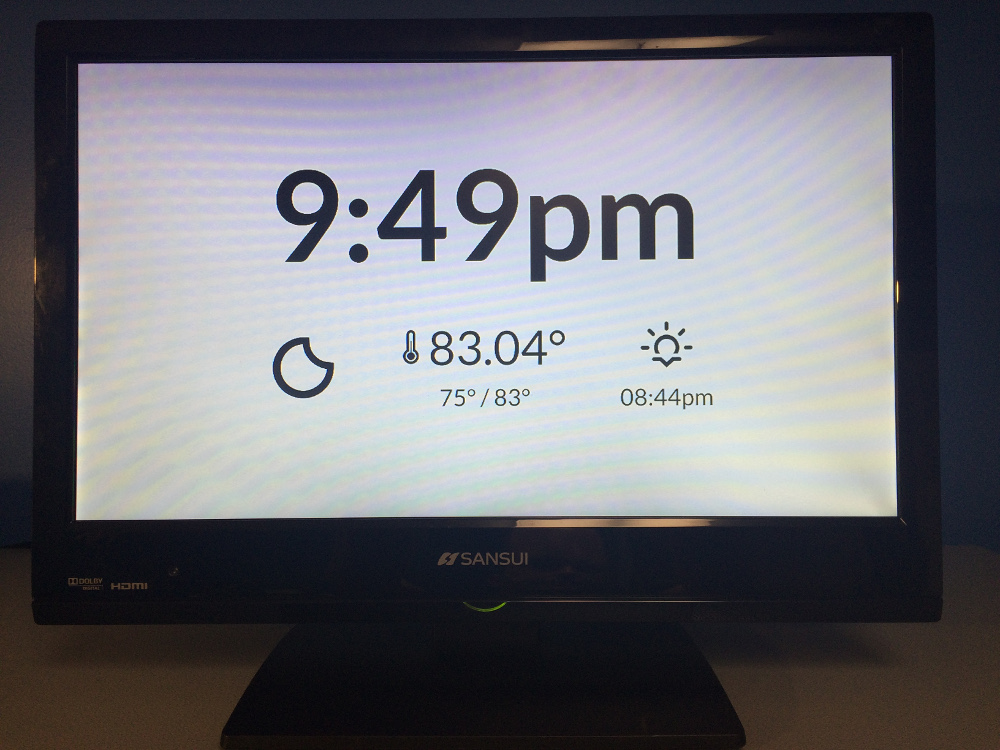
This is a very simple clock and weather page for Raspberry Pi.
I needed a clock in my office and had a spare (cheap) flat-screen TV and a raspberry pi, so this was born.
It shows the current time, weather conditions (via Erik Flower's beautiful weather icons), current temperature (using the OpenWeatherMap API), low temp, high temp, and sunset.
You will NEED to get an API Key from OpenWeatherMap in order to successfully run this application
I'm using Raspbian -- you can use any distro, but YMMV.
0.a: Install Git for the Raspberry Pi
sudo apt-get install git- Install Ruby 2.2.2 on your Raspberry Pi. I used RVM, but you can do it however you want.
1.a. Using RVM on your Raspberry PI
curl -L https://get.rvm.io | bash -s stable --ruby

source ~/.rvm/scripts/rvm

# Confirm everything was installed correctly
type rvm | head -n 1

# should read "rvm is a function"- Clone this repo or download the tarball and expand into your home directory on the Pi.
git clone https://github.com/hectorleiva/rpi-clock.git-
Write a script in your home directory to start the app called "run_clock". This is mine:
(NOTE: There are a few additional steps required below in order to get it set-up on a Pi. This guide is overall incomplete - but it can help you get started at the moment)
#!/bin/bash

cd /home/pi/rpi-clock
GEM_PATH=/home/pi/.rvm/gems/ruby-2.7.1@rpi-clock:/home/pi/.rvm/gems/ruby-2.7.1@global
/home/pi/.rvm/rubies/ruby-2.7.1/bin/ruby app.rb &
chmod +x run_clock- The following environment variables are required for the app to work:
export OPEN_WEATHER_API_KEY=You must input either of these sets of environment variables:
export HOME_LAT=
export HOME_LON=
OR
export HOME_ID=These variables can be contained within a .env file as well can called like the following:
# .env
OPEN_WEATHER_API_KEY=
HOME_LAT=
HOME_LON=
export $(cat .env) && ruby app.rb- Run the script to make sure it works:
./run_clock- Now create a desktop item that will automatically start the script:
sudo vim /etc/xdg/autostart/clock.desktopPut this in the file:
[Desktop Entry]
Name=Clock App
Exec=/home/pi/run_clock
Type=Application
Terminal=true- Last, set the Pi to start with no desktop:
sudo vim /etc/xdg/lxsession/LXDE/autostartComment out the stuff in that file and then put this in the file:
@xset s off
@xset -dpms
@xset s noblank- (Optional) Disable overscan and force HDMI output:
sudo vim /boot/config.txtSet the following options:
disable_overscan=1
hdmi_force_hotplug=1
hdmi_drive=2
Boot the Pi and see if it works!
The weather icons are licensed SIL Open Font License 1.1.
All other code was written by me and is public domain. Use it as you wish.